



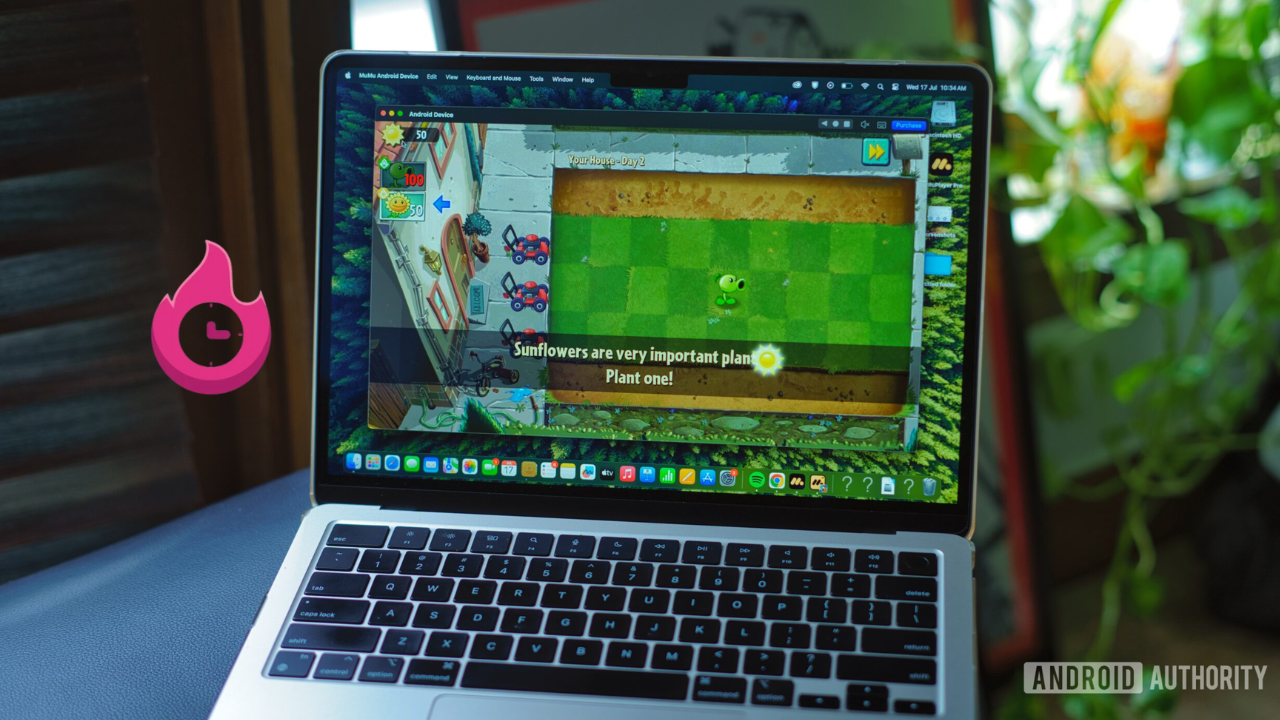
If you’re looking for a simple way to use Android apps on your Mac, you’re in the right place. Whether you want to play Android games, test apps, or just explore the Android interface, an Android emulator can help. In this guide, we’ll explain everything you need to know about finding the best Android emulator for Mac — including free options, lightweight versions, safety tips, and how to install one step-by-step.
What is an Android Emulator for Mac?
An Android emulator is a software program that lets your Mac computer act like an Android phone or tablet. This means you can run Android apps directly on your Mac without needing a physical Android device.
When you install an Android emulator on your Mac, it creates a virtual Android environment. You can use it to open apps from the Google Play Store, play mobile games, and even test applications if you’re a developer. Emulators are often used by gamers, app developers, students, and casual users who want to explore Android features on their Apple machines.
In simple terms, it’s like turning your Mac into an Android phone — but with a bigger screen and more power.
Why Use an Android Emulator on Your Mac?
There are many reasons people choose to use Android emulators on macOS. Here are some of the most common:
- Play Android Games on Mac: Emulators let you play mobile games like PUBG Mobile, Call of Duty Mobile, Free Fire, Clash of Clans, and more with better controls and a larger screen.
- Access Android Apps Not Available on macOS: Some Android apps aren’t available for Mac. Emulators give you access to apps like TikTok Lite, mobile-only games, or region-restricted apps.
- App Development and Testing: Android developers can test their apps on multiple devices and Android versions using emulators like Genymotion or Android Studio Emulator.
- Better Performance: Your Mac’s strong hardware can make apps and games run faster than on low-end Android phones.
- Customization and Control: You can take screenshots, record videos, or map keyboard controls to mobile buttons.
Best Free Android Emulators for Mac
When searching for the best free Android emulator for Mac, it’s important to consider your purpose. Are you gaming, testing, or using social apps? Based on ease of use, compatibility, and features, here are some of the top Android emulators you can use for free on macOS:
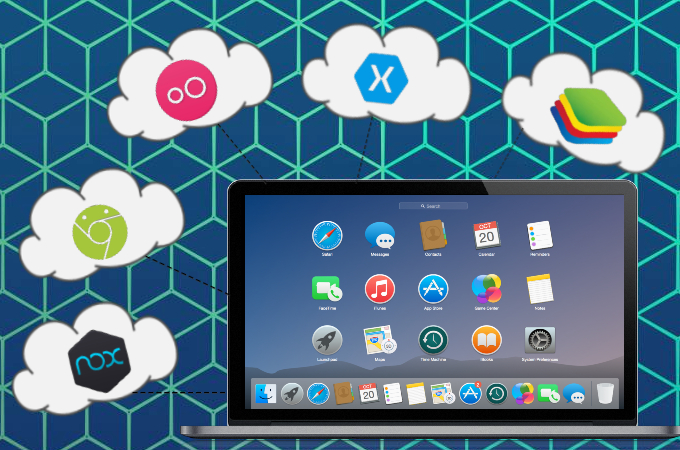
BlueStacks – Easy and Popular Emulator
BlueStacks is one of the most popular Android emulators, and it works smoothly on Mac. It’s especially good for gamers who want to play Android games on a desktop. It supports keyboard mapping, multi-instance support (run multiple apps at once), and comes with the Google Play Store pre-installed.
- Pros:
- User-friendly interface
- Supports Android 11+
- Great for both games and apps
- Cons:
- Requires a good amount of RAM (at least 4GB)
- Can feel heavy on older Macs
Keywords included: bluestacks mac, best android emulator mac, run android games on mac
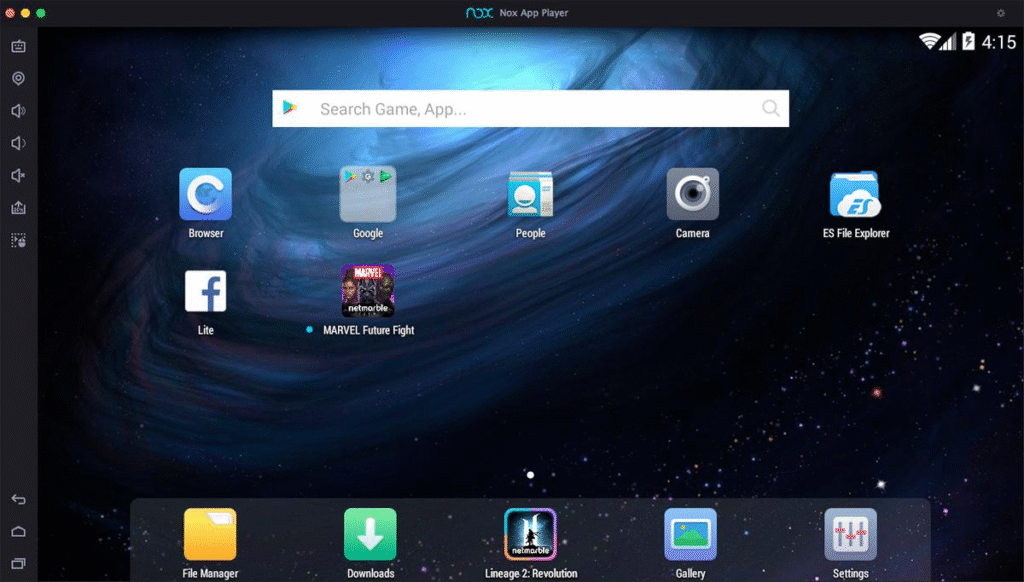
NoxPlayer – Great for Gaming
NoxPlayer is another top choice, especially for users focused on gaming. It allows you to control games with the keyboard, mouse, or even gamepads. It offers features like screen recording, macro creation (automating actions), and different Android versions.
- Pros:
- Customizable controls
- Smooth gameplay for many titles
- Lighter than BlueStacks
- Cons:
- Occasional bugs or crashes
- Some ads in the app
Keywords included: nox player mac, free android emulator mac, android emulator for macbook air
Genymotion – Ideal for Developers
If you’re a developer or tech-savvy user, Genymotion is a powerful emulator made just for you. It’s designed for app testing and debugging. You can simulate various device types and screen sizes, test on different Android versions, and use GPS, battery, and sensor simulation tools.
- Pros:
- Excellent for Android app development
- Cloud-based and desktop versions available
- Supports different Android versions
- Cons:
- Not built for gaming
- Free version has limitations
Keywords included: genymotion mac, android testing on mac, android virtual device mac
Lightweight Android Emulators for Older Macs
If you’re using an older Mac (like a MacBook from 2015 or earlier), you’ll need a lightweight Android emulator that doesn’t slow down your system. Emulators like MEmu, Andy, and KoPlayer are designed to be more resource-friendly.
- MEmu (via cloud): While primarily a Windows emulator, you can use MEmu’s cloud version on Mac via browser-based solutions.
- KoPlayer: Though support is limited, older versions can run Android 6 smoothly on macOS.
- Andy Emulator: Works decently for simple apps but not recommended for gaming or heavy usage.
These lightweight options are ideal if your Mac has less RAM or older processors. They’re useful for running basic apps like WhatsApp, Instagram Lite, or using educational Android apps.
Keywords included: lightweight android emulator mac, android emulator for low end mac, macbook air emulator
Android Emulators for Gaming on Mac
Gaming is one of the most common reasons to install an Android emulator on your Mac. Whether you’re into battle royales, RPGs, or casual puzzle games, a good emulator can give you an edge.
Most gamers prefer BlueStacks or NoxPlayer because of their advanced features like:
- Gamepad support
- FPS boosting settings
- Multi-instance sync
- Keyboard + Mouse Mapping
Games like Genshin Impact, Free Fire, Mobile Legends, and Call of Duty Mobile run smoothly on these emulators. Plus, your Mac’s screen gives you better visibility and smoother performance.
Keywords included: android games on mac, best emulator for gaming mac, run free fire on mac, pubg emulator mac
Are Android Emulators Safe for Mac Users?
Yes, Android emulators are generally safe — as long as you download them from official websites. However, some emulators can include bundled software or ads, so it’s important to be cautious.
Many users ask: “Is BlueStacks safe for Mac?” or “Can emulators damage Mac?” The short answer is: if downloaded from trusted sources like BlueStacks.com or Genymotion.com, they are safe and don’t harm your Mac.
Tips to Stay Safe While Downloading
- Always download from the official website
- Avoid third-party APKs unless they’re from trusted developers
- Use antivirus software on your Mac for extra protection
- Disable emulator permissions if you’re not using them (like microphone or location)
Avoid These Common Mistakes
- Don’t install cracked or pirated emulator versions
- Avoid giving unnecessary permissions to apps
- Don’t run too many emulator instances — it can slow your Mac
- Check your macOS version before installing (some emulators don’t support older OS versions)
How to Install an Android Emulator on Your Mac
Here’s a simple step-by-step guide to install an Android emulator (like BlueStacks) on your Mac:
- Go to the official website (e.g., www.bluestacks.com)
- Download the macOS version
- Double-click the .dmg file to start installation
- Drag the emulator to your Applications folder
- Open it and sign in with your Google account
- Search or install apps using the Play Store inside the emulator
- Configure settings like screen resolution, CPU usage, and controls
Now you can start using Android apps just like on a real phone!
Keywords included: install android emulator mac, how to use android apps on mac, android emulator macbook
What Apps Can You Use with Android Emulators on Mac?
Almost any Android app available on the Play Store can be used on your Mac through an emulator. Popular categories include:
- Games: Clash of Clans, PUBG Mobile, Candy Crush, etc.
- Social Media: TikTok, Instagram, WhatsApp
- Streaming: MX Player, Spotify, YouTube
- Education: Duolingo, Google Classroom, Khan Academy
- Productivity: Microsoft Office, Notion, Google Docs
Whether you’re using a MacBook Air, MacBook Pro, or iMac, Android emulators can bring thousands of mobile apps right to your desktop.
Keywords included: android apps on mac, tiktok android mac, whatsapp emulator mac, play store mac
The Bottom Line
If you’ve ever wished you could run Android apps or games on your Mac, then installing an Android emulator is the perfect solution. Whether you’re a gamer, a developer, or just someone who loves exploring new apps, these tools are easy to use, safe, and incredibly powerful.
With options like BlueStacks, NoxPlayer, and Genymotion, you can enjoy the best of both worlds — Android’s flexibility and macOS’s stability.
Always remember to choose the right emulator based on your needs. If you have an older Mac, go with a lightweight emulator. For gaming, BlueStacks or NoxPlayer will be your best bet. Developers should consider Genymotion or Android Studio’s built-in emulator.
