



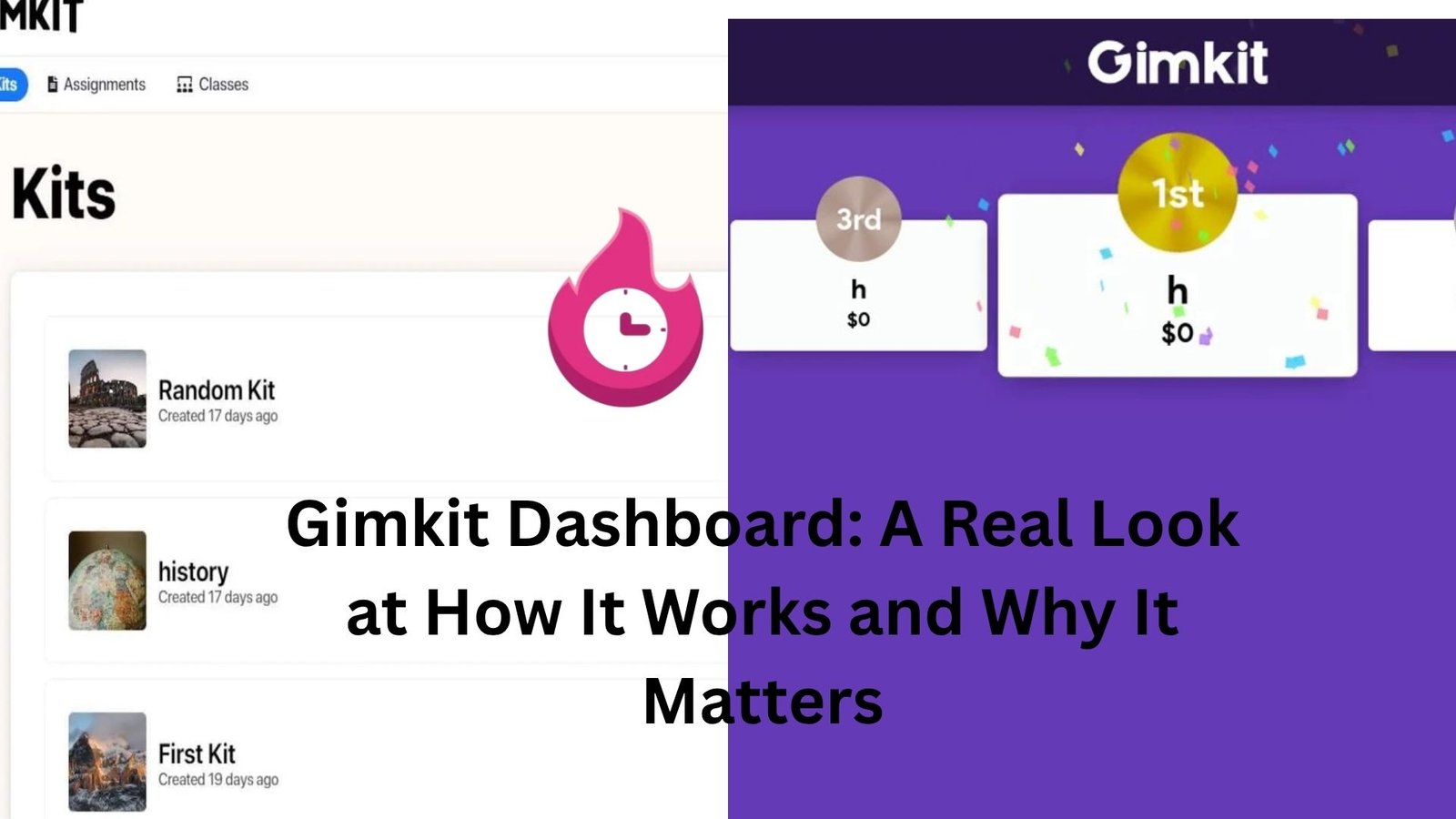
The Gimkit dashboard is one of those tools that doesn’t look like much at first glance—but give it a few minutes, and you start to see how much control it quietly puts in your hands.
If you’ve ever tried running a live game, tracking student progress, and keeping everyone engaged at the same time, you know how messy things can get. Tabs everywhere. Confusion about who’s doing what. Half the class asking, “Wait, what are we supposed to do?”
The dashboard cuts through that noise. Not perfectly—but enough to make a real difference.
First Impressions: Simple, But Not Empty
Open the Gimkit dashboard, and you’re not overwhelmed. That’s intentional. There’s no wall of data screaming at you. Instead, you see a clean layout—kits, classes, assignments, and reports neatly organized.
At first, it might even feel a little too minimal.
But here’s the thing: it’s built for speed, not show.
You can jump straight into creating a game or picking an existing kit without digging through layers of menus. And when you’re in the middle of a busy day—maybe five minutes before class starts—that simplicity starts to feel like a lifesaver.
A teacher I know once described it like this: “It’s the only tool I don’t have to ‘relearn’ every Monday.”
That says a lot.
Creating and Managing Kits Without the Headache
The core of the dashboard is your kits. That’s where everything begins.
Creating one is straightforward. You add questions, choose answers, and you’re done. But what makes the dashboard useful isn’t just creation—it’s how easy it is to manage and reuse content.
You can duplicate kits, edit them on the fly, and organize them without needing a system of spreadsheets or sticky notes. Over time, you build a small library without really trying.
Let’s say you teach the same subject across multiple classes. Instead of rebuilding quizzes every time, you tweak an existing kit in seconds. Change a few questions, adjust difficulty, and you’re ready.
Now imagine doing that without a centralized dashboard. It quickly turns into chaos.
Classes: Where Things Start to Feel Organized
The “Classes” section is where the dashboard becomes more than just a content hub.
You can group students, track their activity, and assign work without juggling separate tools. It’s not a full learning management system, and it doesn’t pretend to be—but it does just enough to keep things manageable.
Here’s a common scenario.
You’ve got three classes, all at slightly different points in the same unit. One group needs review. Another is ready for a challenge. The third… well, they’re somewhere in between.
Instead of running the same activity for everyone, you can assign different kits to each class directly from the dashboard. No extra setup. No confusion.
That kind of flexibility saves time, but more importantly, it lets you respond to what students actually need—not what’s easiest to deliver.
Live Games: Controlled Chaos (In a Good Way)
Running a live Gimkit game feels a bit like hosting a game show. Energy goes up. Students get competitive. Things move fast.
The dashboard is your control panel during all of that.
You can start games, monitor progress, and tweak settings without breaking the flow. And when things get a little too chaotic—and they will—you still have visibility into what’s happening.
You can see who’s leading, who’s falling behind, and who might be guessing their way through.
There’s a small but important detail here: you don’t feel disconnected from the activity. Some tools make you feel like you’ve pressed “play” and stepped back. Gimkit’s dashboard keeps you involved.
And that matters more than it sounds.
Because when students know you’re watching—not in a strict way, but in an engaged way—they tend to stay on track.
Assignments: Not Just for Live Play
Not every class session needs a live game. Sometimes you just want students to work at their own pace.
That’s where assignments come in.
From the dashboard, you can assign kits as homework or independent work. Students complete them on their own time, and the results feed back into your reports.
It’s simple, but effective.
Think about a day when half your class is absent. Instead of trying to catch everyone up later, you assign the same activity through the dashboard. Students complete it when they can, and you still get the data.
No extra planning. No complicated workaround.
It’s one of those features that doesn’t feel flashy—but ends up being surprisingly useful over time.
Reports: Where the Dashboard Earns Its Keep
Now let’s talk about the part that actually changes how you teach: reports.
The Gimkit dashboard gives you a clear view of how students performed, both individually and as a group. You can see which questions caused trouble, who’s consistently strong, and who might be struggling quietly.
And here’s the key—it’s easy to understand.
You don’t need to decode charts or interpret complicated metrics. The information is presented in a way that makes quick decisions possible.
For example, if you notice that most of the class missed the same question, you immediately know where to focus your next lesson. No guessing.
Or maybe one student keeps finishing quickly but with low accuracy. That tells a different story—speed over understanding.
These small insights add up.
They help you adjust in real time instead of waiting until a test reveals the gaps.
The Subtle Power of Game Modes
One thing that doesn’t get enough attention is how the dashboard ties into different game modes.
You’re not just launching a generic quiz. You’re choosing how students interact with the content.
Some modes are fast-paced and competitive. Others are more strategic or collaborative. The dashboard lets you switch between them without rebuilding your material.
That flexibility changes the feel of a lesson.
Let’s say your class is low-energy one day. A competitive mode might wake them up. On another day, when things feel too chaotic, a calmer mode can bring things back down.
Same content. Different experience.
That’s a quiet strength of the dashboard—it supports variety without adding complexity.
Where It Falls Short (Because Nothing’s Perfect)
Let’s be honest—no tool gets everything right.
The Gimkit dashboard, for all its strengths, has a few rough edges.
For one, deeper customization options are limited. If you’re someone who likes to fine-tune every detail, you might feel a bit boxed in. It’s designed for ease of use, which sometimes means less flexibility.
Also, while the reports are clear, they’re not deeply analytical. You get useful insights, but not the kind of detailed breakdown you might expect from more advanced platforms.
And if you’re managing a very large number of classes or students, things can start to feel a bit crowded. It works best in typical classroom settings—not massive, complex systems.
Still, these aren’t dealbreakers. They’re trade-offs.
And for most people, the simplicity outweighs the limitations.
What It Feels Like After a Few Weeks
The real test of any dashboard isn’t how it looks on day one—it’s how it fits into your routine over time.
With Gimkit, something interesting happens.
You stop thinking about the dashboard.
Not because it’s forgettable, but because it becomes second nature. You know where everything is. You move quickly. You spend less time managing the tool and more time focusing on your students.
That’s when you realize it’s doing its job well.
There’s no friction. No constant re-learning. No unnecessary steps.
Just a steady, reliable system that supports what you’re already trying to do.
A Small Shift That Makes a Big Difference
Here’s the thing about tools like the Gimkit dashboard—they don’t transform everything overnight.
But they do change the small moments.
The five minutes before class when you need something ready.
The quick check after a lesson to see who understood the material.
The ability to adjust without starting from scratch.
Those small shifts add up.
And over time, they make teaching feel a little more manageable, a little more responsive, and a lot less chaotic.
That’s really what the dashboard offers.
Not perfection. Not magic.
Just a smarter, simpler way to stay in control.
